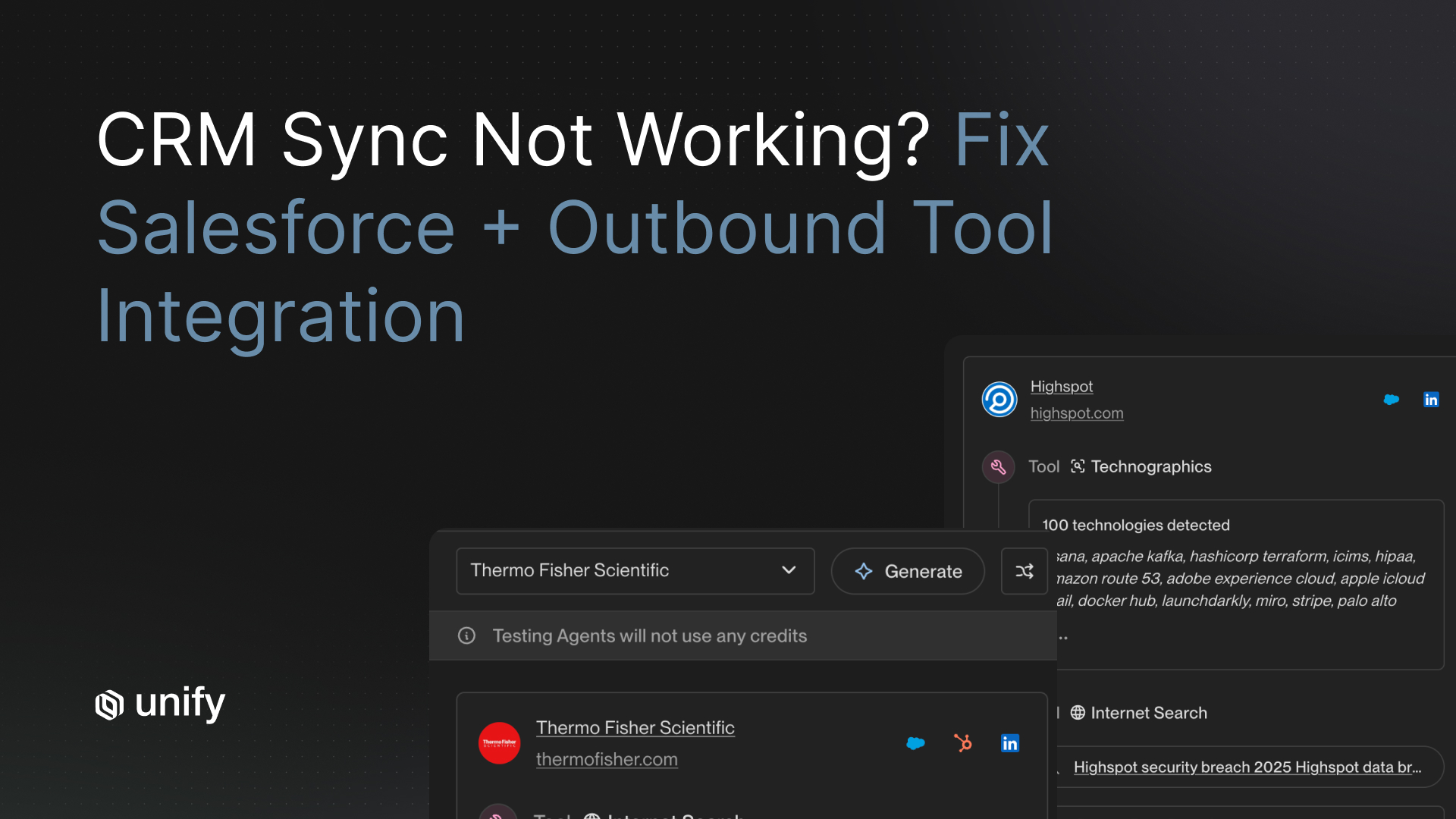
TL;DR: Before connecting any new sales tool to your CRM, validate 18 checkpoints across six buckets: authentication and permissions, object mapping, field fidelity, activity logging, duplicate and merge rules, and rollback planning. Teams that skip even one bucket routinely surface silent data corruption within 60 days. This checklist is designed to prevent that, and it works for both Salesforce and HubSpot.
Why Do Most CRM Integrations Break Quietly?
Most CRM integrations break because they are validated once at setup and never again. There is no error screen on day one. Instead, you get a slow bleed: activity logs that stop populating, duplicate records that multiply in the background, required fields silently rejected by Salesforce validation rules, and sync errors that pile up in a log nobody checks. According to Validity's State of CRM Data Management in 2025 (surveying 602 CRM users), 76% of organizations report that less than half of their CRM data is accurate and complete. Thirty-seven percent directly attribute revenue loss to poor data quality.
The trigger is almost always the same: a new sales tool connects to the CRM without a structured pre-launch validation process. The integration technically "works" at setup, then starts degrading within weeks as edge cases surface. A checklist does not guarantee a perfect integration, but it closes the most predictable failure points before they cost you pipeline.
For a deeper look at how to evaluate CRM integration quality across vendor options, see CRM Integration in Sales Platforms: How to Evaluate What Actually Matters.
What Is the 18-Point CRM Integration Checklist?
The table below is the complete pre-launch checklist. Each item maps to one of six buckets. Walk through every row before you flip the integration live. A detailed breakdown of each bucket follows the table.
Bucket 1: Auth and Permissions. Why Your Credentials Setup Determines Everything Downstream
Authentication failures are the most invisible class of CRM integration problems because they do not always cause immediate errors. An integration can authenticate successfully, begin writing records, and still silently fail to log activities or update fields weeks later when a token expires or a scope is missing. The fix is simple: use OAuth 2.0 with a refresh token flow, never static API keys attached to a personal user account.
For Salesforce, request only the minimum scopes required: api, refresh_token, and the specific object-level permissions your tool needs. Avoid full scope, which grants access to everything. HubSpot's OAuth 2.0 issues short-lived access tokens that expire after 30 minutes. If your integration does not implement a proper refresh flow, it will silently stop syncing mid-session. HubSpot Professional accounts are limited to 625,000 API requests per day; Enterprise accounts get 1,000,000. Know your ceiling before you launch high-volume sequences.
The single most important hygiene rule: the integration should authenticate as a dedicated service user or connected app, not a specific rep's credentials. When that rep leaves the company and their account is deprovisioned, the integration breaks silently for everyone.
Bucket 2: Object Mapping. How Do Salesforce and HubSpot Handle Records Differently?
Object mapping is where Salesforce and HubSpot create the most friction, and where most teams make their first consequential mistake. The two CRMs have fundamentally different data models, and your sales tool must know exactly which objects it is reading from and writing to in each system.
Salesforce: Leads and Contacts are separate objects. A Lead is a person who has not yet been qualified; a Contact is associated with an Account. Most sales tools default to creating Leads, which means unqualified inbound contacts pile up in your Lead queue unless you have a conversion rule. Before go-live, define: (1) which object new records land on, (2) what triggers a Lead-to-Contact conversion, and (3) whether the tool can handle converted Leads without creating duplicate Contacts.
HubSpot: All people are Contacts, deduplicated on email address. This sounds simpler, but it creates a different problem. If the same person exists with two different email addresses, HubSpot will create two Contact records and sync both. Your sales tool needs to know which record to write to. HubSpot also creates new Company records automatically based on Contact activity if that setting is enabled. Turn it off when a Salesforce integration is active, or you will generate ghost company records that break Account hierarchy reporting.
Bucket 3: Field Fidelity. The Silent Killer Is a Restricted Picklist
Field fidelity failures are the leading cause of silent data corruption. The record writes to the CRM. No error is thrown. But the value that lands in the field is wrong, blank, or rejected. Salesforce enforces strict validation on restricted picklists: if your sales tool sends a value that does not exactly match an allowed picklist option (including case), Salesforce returns an INVALID_OR_NULL_FOR_RESTRICTED_PICKLIST error and the write fails. Most integrations log this as a skipped record rather than a hard error, so it goes unnoticed.
Three things to do before go-live. First, pull the full list of restricted picklist values from Salesforce for every field your integration will touch and compare them character-for-character against the values your sales tool sends. Second, audit every required field in Salesforce for any object the tool writes to. Required fields with no mapped source value will cause every write to fail silently. Third, document which custom fields should be skipped. An unmapped custom field that defaults to overwriting with a blank value will wipe data that already exists in your CRM.
Bucket 4: Activity Logging. If It Did Not Log to CRM, It Did Not Happen
Activity logging is the bucket most teams shortcut, and it is the one that creates the most visible downstream damage. If your sales tool runs sequences but the email sends, call completions, and meeting bookings do not write back to CRM as Tasks or Activities, your reps are flying blind in the CRM view, your managers cannot accurately forecast, and your attribution reporting is wrong.
For Salesforce, activities log as Tasks (completed actions) or Events (scheduled actions like meetings). Verify that your integration creates Tasks with the correct WhoId (the Contact or Lead) and WhatId (the Opportunity or Account) before go-live. For HubSpot, verify that email sends log under the correct Contact timeline and not just inside the sales tool's own activity feed. Sequence enrollment and step completions should also write back to the CRM. If they live only in the sales tool, you cannot tie outbound activity to pipeline in your CRM reports.
Test this in a sandbox before launch. Send a test email through the integration, book a test meeting, make a test call, then open the corresponding CRM record and confirm all three appear as Activities. If any one of them is missing, debug it before going live with your full rep team.
Bucket 5: Duplicate and Merge Rules. Clean Before You Connect
The biggest mistake teams make with deduplication is treating it as a post-launch cleanup task. By the time a bad integration has been running for 30 days, duplicate records have proliferated enough that resolving them requires significant manual work. The correct approach is to clean before connecting.
Before go-live: run a deduplication pass on all CRM objects the integration will touch. Define your merge direction in writing. When a conflict exists between the CRM record and the sales tool record, which system wins? For Contacts and Leads, merge in Salesforce first so the cleanup flows downstream into HubSpot. For Companies and Accounts, merge in Salesforce, then manually reassign linked Contacts and deals in HubSpot.
A critical HubSpot-specific quirk: when a Salesforce integration is active, HubSpot does not allow you to merge Company records through the UI. Duplicate Companies must be manually deleted, and their Contacts reassigned to the correct record. This is a painful manual process if you let duplicates accumulate for weeks. The leverage is in preventing them from being created in the first place.
For a systematic approach to auditing your integration for duplicate and sync issues after launch, see How to Audit Your CRM Integrations for Data Gaps and Sync Failures.
Bucket 6: Rollback and Kill-Switch Planning. Build the Exit Before You Enter
Rollback planning is the bucket that gets skipped most often because it feels like pessimism. It is not. It is the structural safeguard that gives you confidence to go live faster, because you know you can reverse the decision cleanly.
Before connecting the integration: export a full snapshot of every CRM object the tool will touch. Contacts, Leads, Accounts, Opportunities, Activities. Store that export somewhere outside the CRM (a Google Drive folder, a shared S3 bucket, anywhere with access controls). Document your exact integration settings in writing: which objects are syncing, in which direction, with which field mappings, at which sync frequency.
Define and test your kill-switch procedure. The goal is to be able to disable the integration in under five minutes without deleting existing records. This usually means having the admin credentials to the connected app or API key rotation ready, and knowing exactly which toggle in which system to flip. Assign one named owner who has admin access to both systems and authority to make that call without waiting for a committee.
Salesforce vs. HubSpot: The Seven Quirks That Catch Teams Off Guard
Both Salesforce and HubSpot are mature CRM platforms, but they handle integration edge cases differently. Here are the seven most common platform-specific issues to verify before launch.
- Salesforce Lead conversion: When a Lead converts to a Contact, some sales tools lose the association. Confirm your tool handles converted Leads without creating a duplicate Contact.
- Salesforce restricted picklists: Values are case-sensitive and strictly enforced at the API level. A mismatch causes a silent write failure, not a visible error.
- Salesforce required fields: Required fields set in Salesforce are enforced through the API. A sales tool that does not send a value for a required field will fail to write that record entirely.
- HubSpot email-based deduplication: HubSpot deduplicates Contacts on email address only. Two records for the same person with different emails will both sync and both receive outbound touches.
- HubSpot auto-created Company records: If the "auto-create companies from contact domain" setting is on, every new Contact from a corporate email domain spawns a Company record. Disable this before activating the Salesforce sync.
- HubSpot Company merge lockout: With a Salesforce integration active, HubSpot blocks Company merges through the UI. Duplicate Companies must be manually deleted.
- Token expiration across both platforms: HubSpot access tokens expire in 30 minutes. Salesforce tokens follow your connected app session policies. Both require refresh token implementations, not one-time access tokens.
How Does Unify Handle All Six CRM Integration Buckets?
Most sales tools require you to navigate this checklist yourself, with middleware connectors, manual field mapping UIs, and limited documentation. Unify was built with native CRM integrations for Salesforce and HubSpot, which means the architecture handles the mechanics of these six buckets by design rather than leaving them as configuration work for your RevOps team.
Auth and permissions: Unify connects via OAuth 2.0 with scoped access. The integration authenticates as a service account, not a user account, so rep offboarding does not break the sync.
Object mapping: Unify supports bidirectional sync across Leads, Contacts, Accounts, Opportunities, and custom objects. Lead vs. Contact routing in Salesforce is configurable, with explicit conversion logic to prevent duplicate Contact creation on Lead convert events.
Field fidelity: Field mappings are set at the admin level with validation against the live CRM schema. Restricted picklist values are validated before write. Required field conflicts surface as warnings before launch, not as silent post-launch failures.
Activity logging: Every email send, call, meeting, and sequence step writes back to CRM as a Task or Activity on the correct object. Unify customers consistently see outbound activity fully reflected in Salesforce and HubSpot without manual logging.
Duplicate and merge rules: Unify applies deduplication logic against existing CRM records before creating new ones. Records that match on email or a configured identifier field update the existing record rather than creating a net-new entry.
Rollback: Integration settings are versioned and documented within the Unify admin panel. Changes to field mappings or sync logic are logged, and the integration can be paused without deleting historical activity data.
Teams that deploy Unify report going from signal to live outbound sequence in days rather than weeks, largely because the integration architecture removes the pre-launch configuration work that typically blocks other tools. For best practices on keeping outbound data clean from day one, see CRM Integration Done Right: Keep Outbound Data Clean from Day One.
What Should a 30/60/90-Day Post-Launch CRM Monitoring Plan Look Like?
A clean pre-launch checklist is necessary but not sufficient. CRM integrations degrade over time as the sales tool updates, CRM schemas change, and edge cases surface from real usage. A structured monitoring cadence catches problems before they compound.
Days 1-30: Validate and Stabilize
- Check the sync error log daily for the first two weeks. Most post-launch failures surface in this window.
- Verify that Activity logs are populating on CRM records for every rep using the tool.
- Run a duplicate check on any new records created since go-live.
- Confirm OAuth tokens have refreshed at least once without manual intervention.
- Document any edge cases that required manual fixes and update the integration settings accordingly.
Days 31-60: Audit for Data Drift
- Pull a sample of 50 records that the integration touched and verify field values are correct and complete.
- Check for orphaned Activity records not associated with a Contact, Lead, or Opportunity.
- Verify that picklist values have not drifted (new values added to the sales tool but not to the CRM picklist).
- Review API usage against your plan limits. HubSpot Professional caps at 625,000 requests per day; approaching that limit is a sign the sync configuration needs tuning.
- Compare duplicate rates before and after go-live. Any increase warrants immediate investigation.
Days 61-90: Optimize and Harden
- Review reporting accuracy: are pipeline attribution and activity reports in the CRM consistent with what the sales tool shows?
- Assess whether any custom fields added since launch need to be mapped into the integration.
- Re-run the field fidelity audit for any schema changes pushed by either the CRM or the sales tool in the prior 90 days.
- Update your rollback documentation to reflect the current integration state.
- Schedule a quarterly cadence for ongoing sync health checks going forward.
Frequently Asked Questions
What CRM integration checklist should I use before going live with a new sales tool?
Use an 18-point checklist organized into six buckets: (1) auth and permissions, (2) object mapping, (3) field fidelity, (4) activity logging, (5) duplicate and merge rules, and (6) rollback and kill-switch planning. Skipping any single bucket creates a category of silent data corruption that typically surfaces within 60 days of go-live, by which point it is difficult to trace back to the source.
What is the most common cause of CRM sync failures after go-live?
The most common root causes of post-launch sync failures are misconfigured OAuth scopes (the integration lacks write permissions for certain objects), incorrect object mapping between the sales tool and the CRM, and missing required field values that fail Salesforce validation rules silently. HubSpot's sync error categories include permissions, picklist mismatches, property mapping failures, and duplicate conflicts, all of which trace back to insufficient pre-launch validation.
What are the differences between Salesforce and HubSpot CRM integration quirks?
Salesforce separates Leads and Contacts as distinct objects, requiring explicit decisions about where inbound records land and when Leads convert to Contacts. HubSpot uses a unified Contact object but deduplicates on email address only, so two records with different emails for the same person can coexist and both sync. HubSpot also does not let you merge Companies when a Salesforce integration is active, requiring manual deletion and contact reassignment.
How do I set up a rollback plan for a CRM integration?
Before go-live, export a full backup of all CRM objects you plan to touch. Document your exact integration settings in writing so they can be restored. Define a kill-switch procedure that disables the integration in under five minutes without deleting existing records. Test the rollback in a sandbox environment before launch day. Assign a single owner who has admin access to both systems and authority to pull the plug.
How long does it take to detect CRM data corruption from a bad integration?
Most teams do not notice silent data corruption until 30 to 60 days post-launch, when they start seeing reporting discrepancies, misattributed activities, or duplicate records accumulating. By that point the damage is often widespread. This is why a pre-launch checklist and a 30/60/90-day monitoring cadence are both essential, not optional.
Sources
- Validity. State of CRM Data Management in 2025. PR Newswire, 2025. https://www.prnewswire.com/news-releases/validity-releases-state-of-crm-data-management-in-2025-report-revealing-disconnect-between-data-quality-and-ai-implementation-302499899.html
- Salesforce. OAuth Scope Parameter Values. Salesforce Developer Documentation, 2025. https://developer.salesforce.com/docs/platform/mobile-sdk/guide/oauth-scope-parameter-values.html
- Salesforce. Manage OAuth Access Policies for a Connected App. Salesforce Help, 2025. https://help.salesforce.com/s/articleView?id=xcloud.connected_app_manage_oauth.htm
- HubSpot. API Usage Guidelines and Limits. HubSpot Developer Documentation, 2026. https://developers.hubspot.com/docs/developer-tooling/platform/usage-guidelines
- HubSpot. Resolve Duplicate Salesforce Records Syncing with HubSpot. HubSpot Knowledge Base, 2025. https://knowledge.hubspot.com/salesforce/duplicate-salesforce-leads-or-contacts-syncing-to-hubspot
- HubSpot. Manage Salesforce Integration API Calls and Sync Errors. HubSpot Knowledge Base, 2025. https://knowledge.hubspot.com/salesforce/resolve-salesforce-integration-sync-errors
- Medium / UATeam. How to Fix the "INVALID_OR_NULL_FOR_RESTRICTED_PICKLIST" Error in Salesforce. 2025. https://medium.com/@aleksej.gudkov/how-to-fix-the-invalid-or-null-for-restricted-picklist-error-in-salesforce-0a544e63e60b
- Unify. CRM Integration in Sales Platforms: How to Evaluate What Actually Matters. 2026. https://www.unifygtm.com/explore/crm-integration-sales-platforms
- Unify. How to Audit Your CRM Integrations for Data Gaps and Sync Failures. 2026. https://www.unifygtm.com/explore/crm-integration-audit
- Unify. CRM Integration Done Right: Keep Outbound Data Clean from Day One. 2026. https://www.unifygtm.com/explore/crm-integration-outbound-data-clean
About the Author
Austin Hughes is Co-Founder and CEO of Unify, the system-of-action for revenue that helps high-growth teams turn buying signals into pipeline. Before founding Unify, Austin led the growth team at Ramp, scaling it from 1 to 25+ people and building a product-led, experiment-driven GTM motion. Prior to Ramp, he worked at SoftBank Investment Advisers and Centerview Partners.


.avif)